
See the whole response
Separate the location into readable zones. Connect each threat to people, infrastructure, evacuation routes and response assets.
World & settlement
See the urgent needs.
Choose where help goes.
Carry the community into recovery.
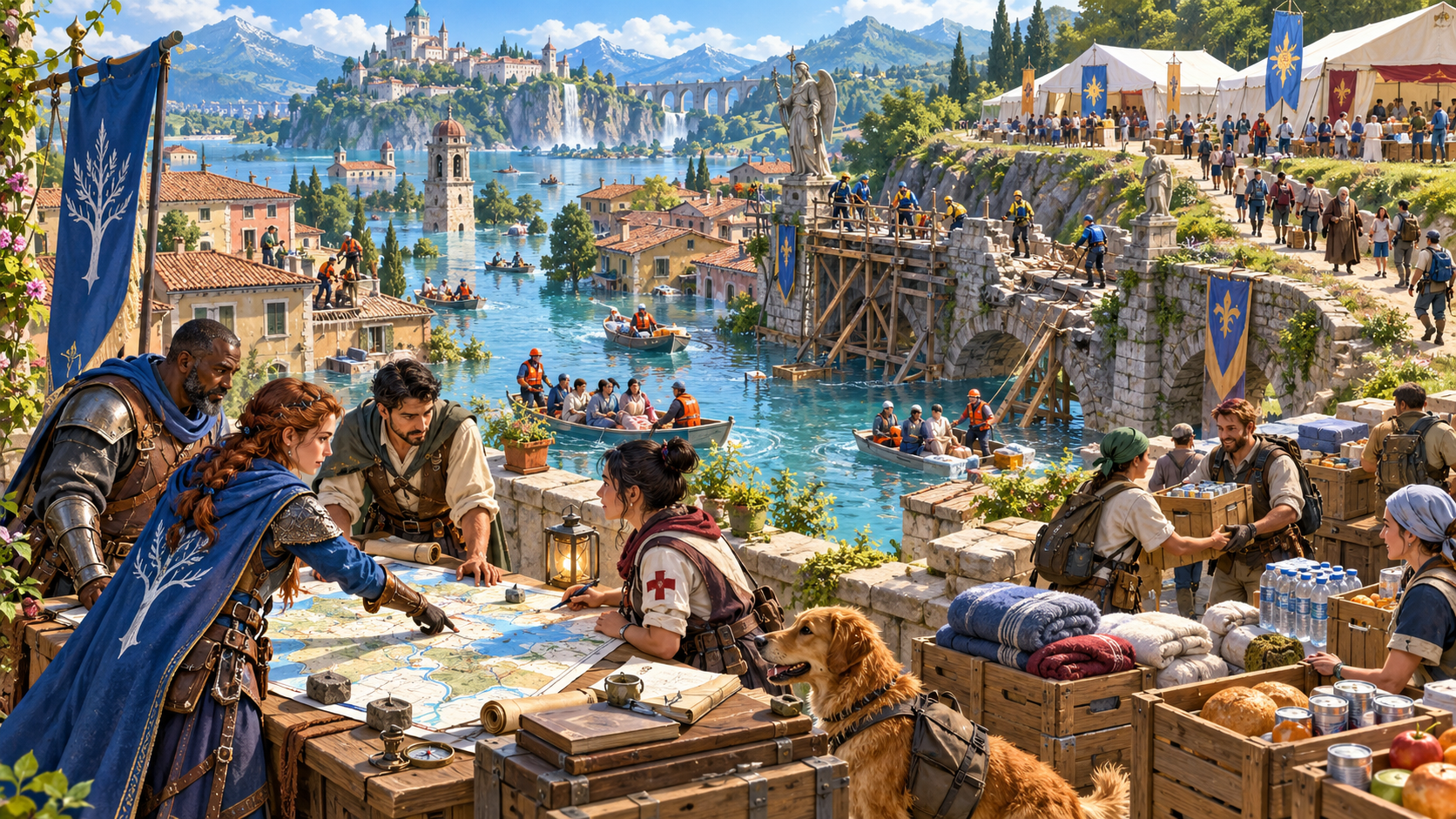
An emergency the party can influence
Connect threats, people and limited response resources across one evolving fictional crisis.
Separate the location into readable zones. Connect each threat to people, infrastructure, evacuation routes and response assets.
Set player objectives that can change the crisis picture. Show which choices prevent a cascade and which needs must wait.
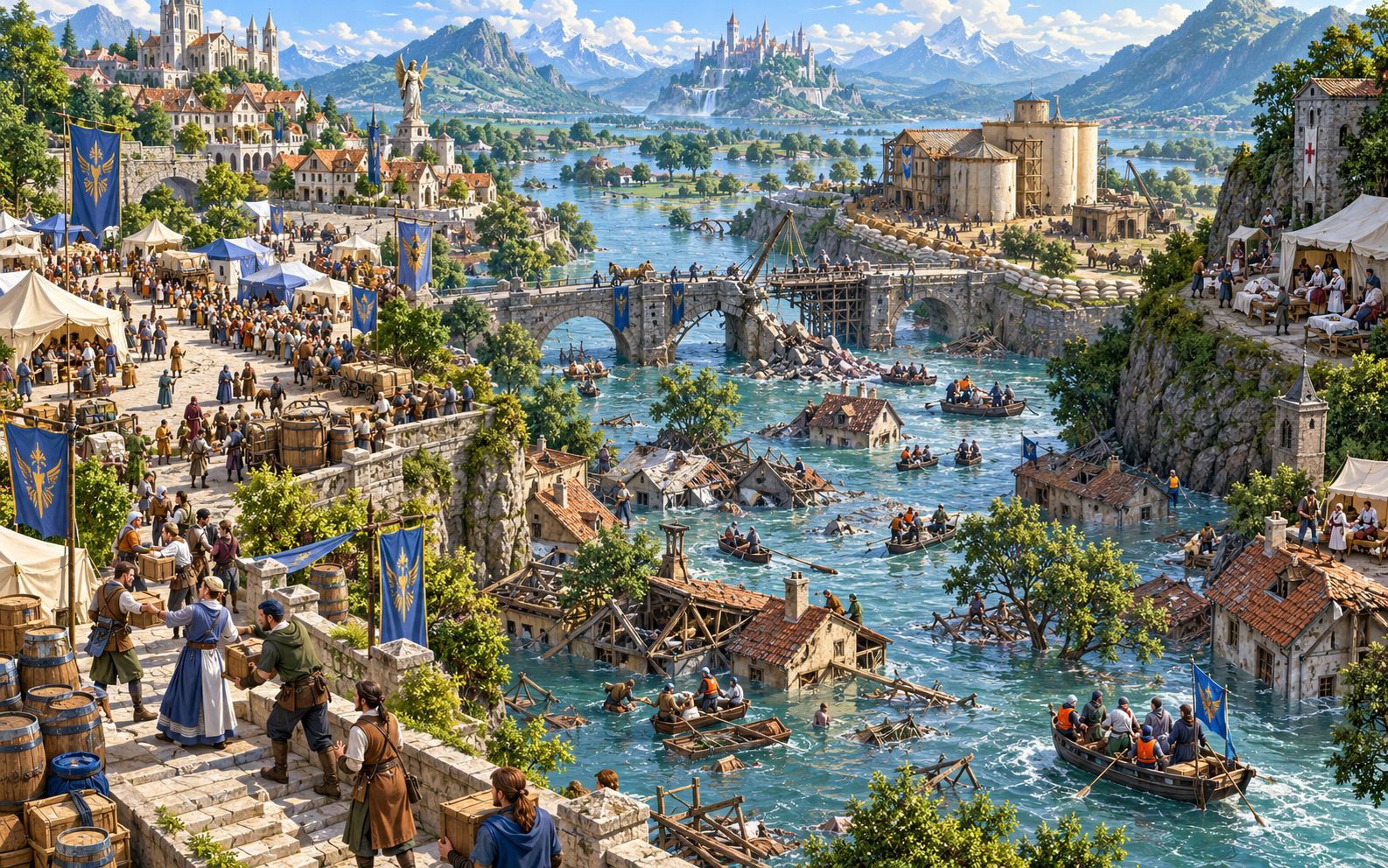
Affected zones and changing threats
Track the first hour across three to six simultaneous problems. Give each zone current conditions, vulnerable groups, practical needs and connections to the wider emergency.
Follow hazard fronts, weather, aftershocks, infrastructure failures and public mood on an escalation clock. Make cascade risks visible beside response teams, shelters and supplies.
What you can prepare
Build a connected emergency guide with objectives the party can act on.
Choose the disaster, scale, severity and preparedness. Establish affected zones and the conditions the party encounters first.
Prepare three to six simultaneous problems across one emergency. Connect each threat to people, places and essential services.
Track changing threats, weather, aftershocks and cascade risks. Keep escalation readable as the party decides where to help.
Describe damaged buildings, failing services, contamination and displaced people. Connect practical needs to the choices available.
Put teams, volunteers, supplies and authorities where they can make a difference. Make limits and competing priorities visible.
Prepare routes, shelters and bottlenecks. Show who needs help reaching safety within the fictional emergency.
Turn urgent needs into actions the party can take. Show what changes when help arrives, a need waits or a secondary crisis is prevented.
Edit the emergency, lock resolved zones and rebuild the parts still changing. Use undo and redo while shaping the response.
Prepare stabilisation, recovery priorities and lasting consequences. Keep the community beyond the immediate emergency in view.
Save account-library versions, rename or duplicate scenarios, add tags and notes, and reopen zones, clocks, routes and recovery progress.
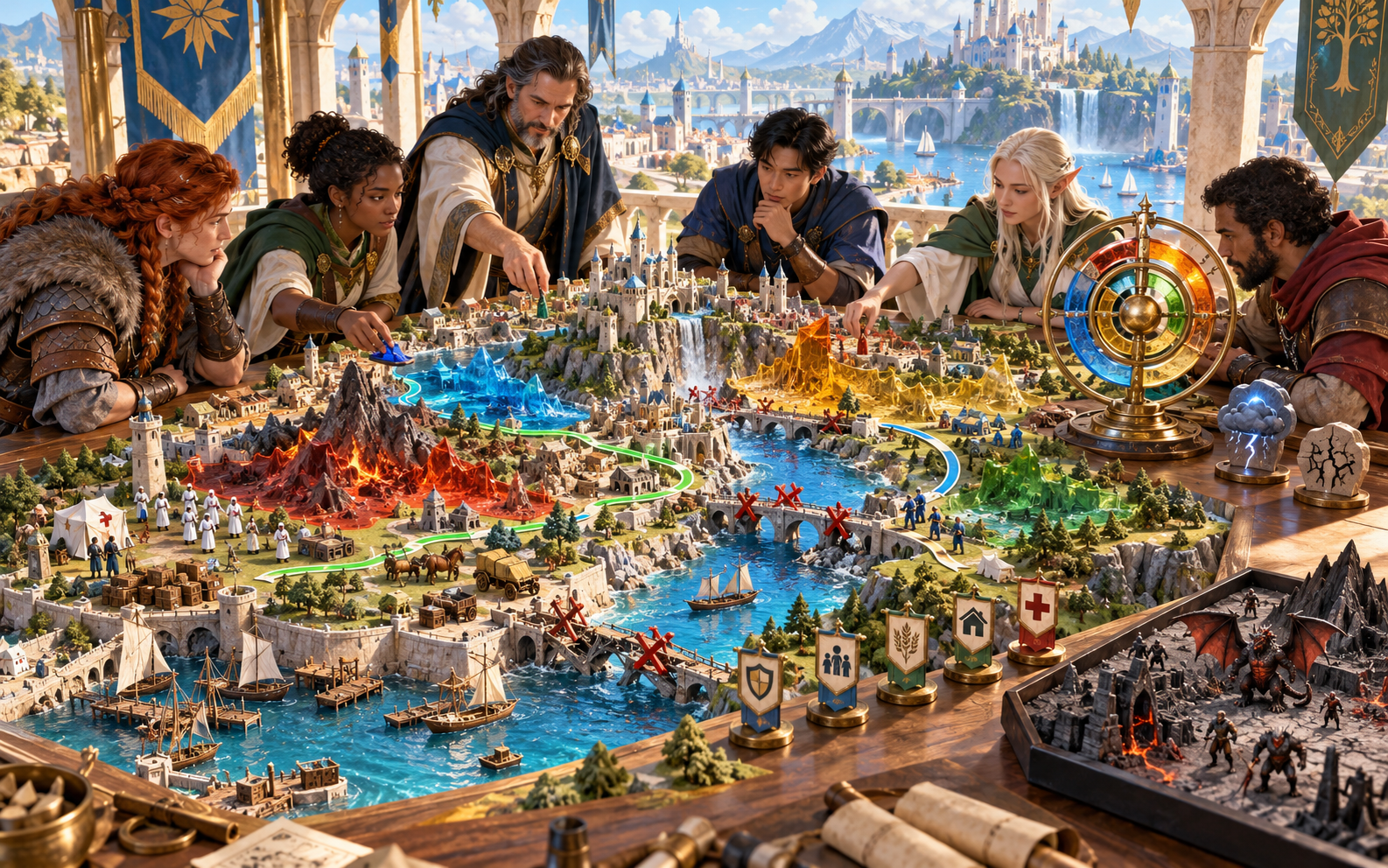
Zones, routes and response assets
Name the place and choose the disaster, scale, severity and preparedness. Generate affected zones, first-hour conditions, simultaneous problems, an escalation clock, response assets and evacuation routes.
Refine bottlenecks, supplies, authorities, volunteers and competing priorities. Check that each player objective can change the crisis picture; keep resolved zones locked while rebuilding the parts still moving.
Quick setup. Deeper preparation.
Start with urgent priorities and refine the pressures behind them.
Choose the disaster and place. Review first-hour conditions, affected zones, three to six simultaneous problems and the available response assets.
Refine weather, aftershocks, contamination, infrastructure damage and cascade triggers. Put the escalation clock beside the needs it affects.
Describe authorities, public mood, vulnerable groups, volunteers, supply limits and evacuation bottlenecks. Give competing priorities a clear reason.
Lock resolved zones, refine routes or resource choices and selectively rebuild what is still changing. Use editing, undo and redo in the same workspace.
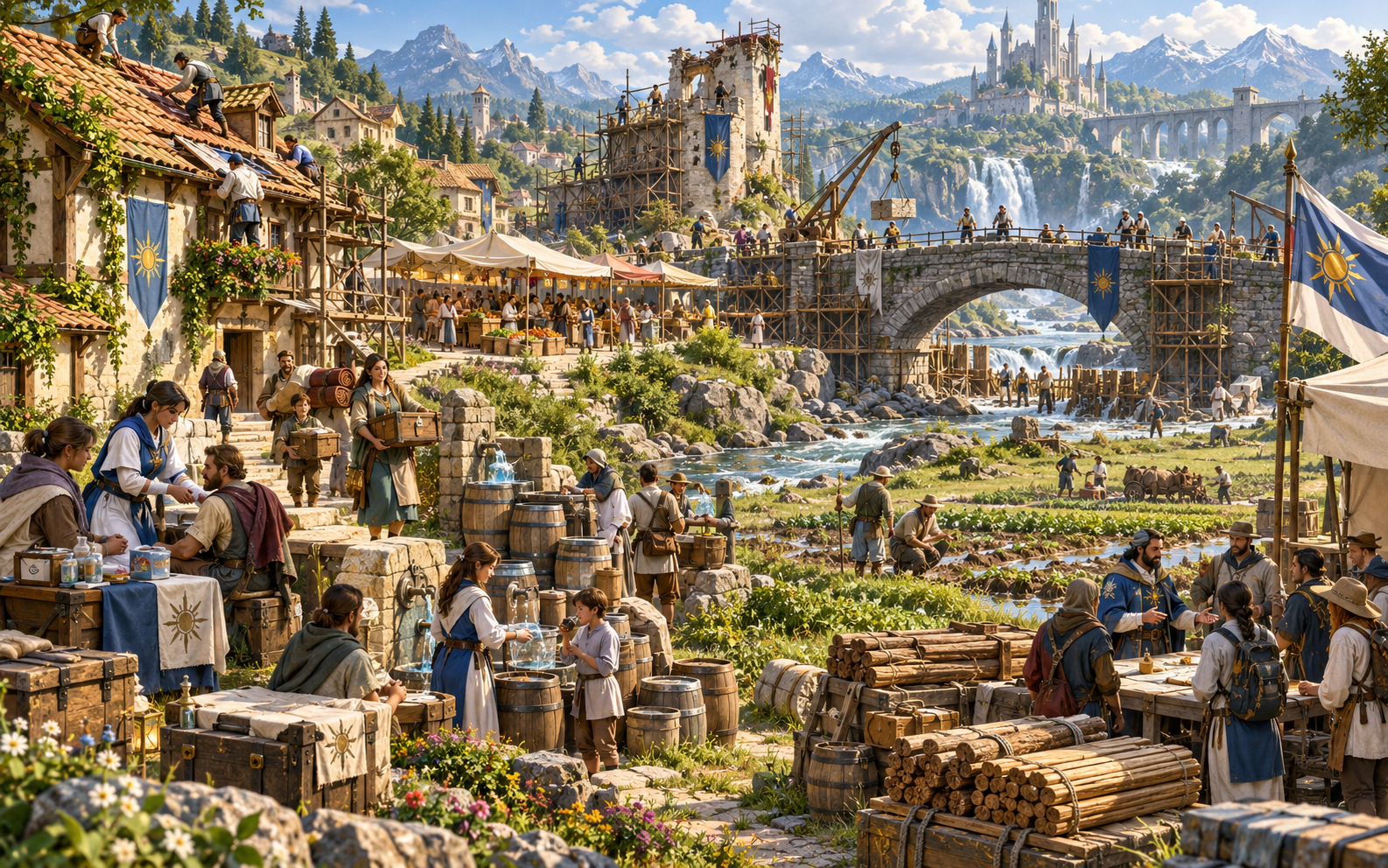
Stabilisation and lasting consequences
Carry the scenario from immediate response into stabilisation and recovery. Keep damaged infrastructure, shelter needs, displaced people and rebuilding priorities visible after urgent threats ease.
Record the consequences of the party's choices and the needs still waiting. Keep recovery progress editable alongside zones, clocks, routes and resource decisions.
Saved emergencies and table references
Reopen the scenario and choose the material your audience needs.
Save emergencies to your account library, keep versions and reopen the scenario later. Keep zones, clocks, routes and recovery progress in one workspace.
Rename or duplicate a useful scenario, then add tags and notes. Adapt the emergency to the location and campaign you are preparing.
Copy the complete Dungeon Master emergency guide or the player objectives and evacuation view. Review the selected audience material before sharing.
Download the finished scenario as JSON or print the version you want at the table. Keep response and recovery references beside the unfolding session.
Your desktop and related products
Open the generator through your account and retain its wider response picture.

Open your VISINVOKE products through one signed-in Windows desktop workspace.
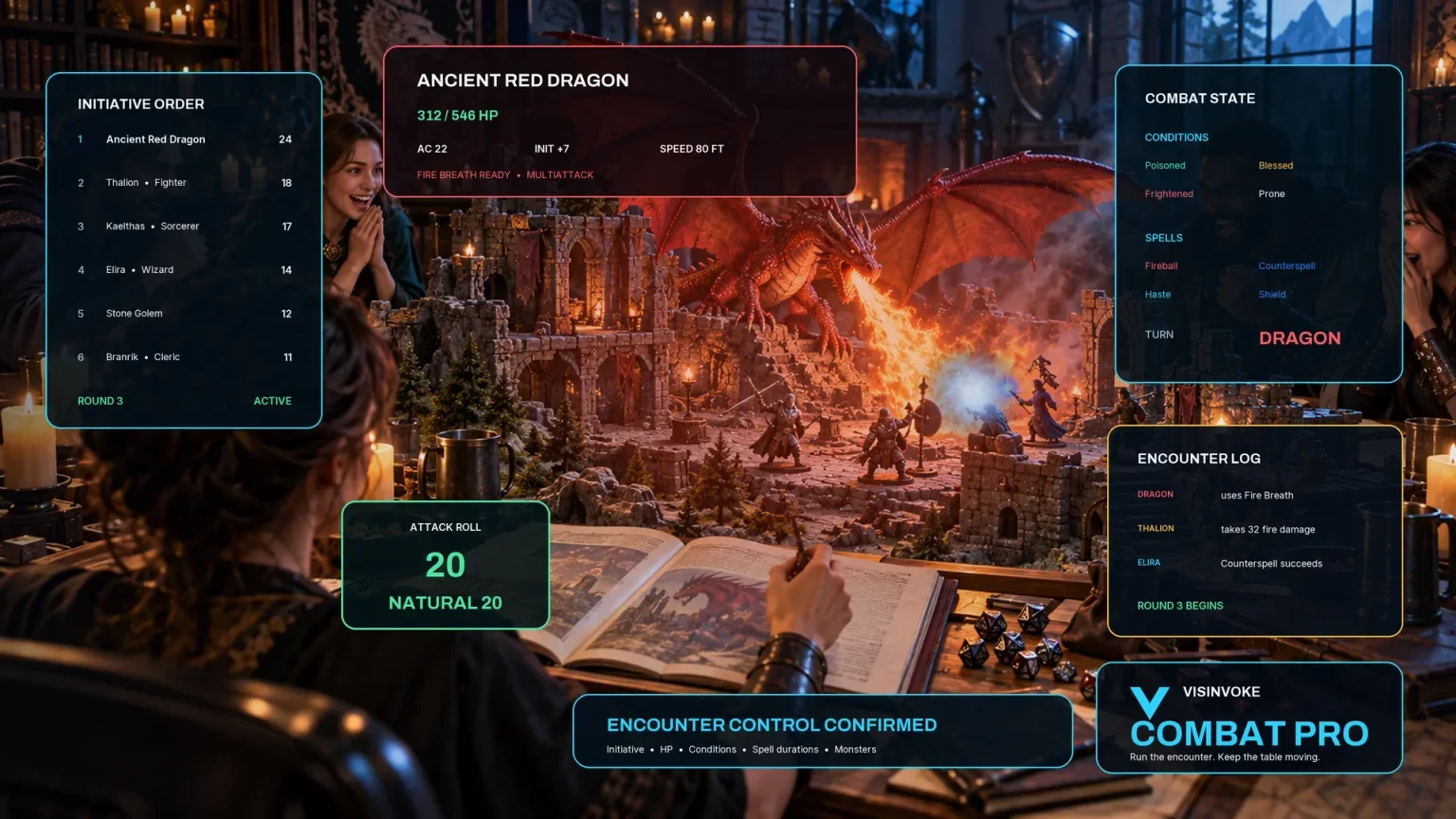
In Deep mode, export one selected hostile scene as JSON for an inactive encounter. Export does not start combat; the wider crisis stays in Disaster Response Generator.
Artwork illustrates fictional emergency planning and related products, not application screens.
Questions and answers
Disasters, refinements, saved material and account access at a glance.
Use the generator for fictional floods, fires, earthquakes, collapses or magical disasters. Choose scale, severity and preparedness, then refine the first hour, affected zones and changing threats.
Keep three to six simultaneous problems within affected zones. Hazard fronts, an escalation clock, response resources, evacuation routes and competing needs give the table a readable crisis picture.
Yes. Edit zones, clocks, routes and resources, lock resolved zones and rebuild the parts still changing. Undo and redo support refinements in the same workspace.
Save emergencies to your account library, retain versions, rename or duplicate a scenario, and add tags and notes. Copy the full DM guide or player objectives and evacuation view, download JSON or print the selected version. Review audience material before sharing.
If requested in Deep mode, export one selected hostile or combat-capable scene as JSON for an inactive Combat PRO encounter. Export does not start combat. The wider emergency, zones, clocks, routes and recovery remain in Disaster Response Generator.
Open the Generators collection in Desktop Control Centre on Windows through your VISINVOKE account. Review individual subscription access and current pricing in your account. A free account is separate from paid generator access.
Continue in VISINVOKE
Create a free VISINVOKE account or sign in to your existing account. Get Desktop Control Centre through your account installer page.
Open the Generators collection on Windows. Review current subscription and access details in your account.